Introducing Quiz Creator: Build and Share a Free Quiz in Minutes
Our new My Quizzes tool lets you build a multiple-choice quiz by hand or generate one instantly with AI, then share it with a single link and track every score. Here's how it works and who it's built for.
We just shipped a new free tool: My Quizzes, a quiz generator that lets any signed-in user build a multiple-choice quiz, share it with a single link, and see exactly how everyone who takes it scores. You can write every question yourself, or describe the topic and let AI draft the questions for you to review before anything is saved.
Here's what it is, how to use it, and who we built it for.
What My Quizzes does
- Create a quiz with a title, an optional description, and an optional time limit.
- Add multiple-choice questions with up to four answer choices and an optional explanation shown after the taker submits.
- Optionally shuffle answer choices for each taker, so the correct answer isn't always in the same position.
- Publish the quiz and share it with a single link — anyone with the link and an account can take it.
- Track every submitted attempt: username, email, score, and correct/total count.
- Export all attempts to CSV for your own records or gradebook.
- Generate questions with AI from a short topic description, then review and edit every question before saving.
Where to find it
Log in and open My Account → My Quizzes from the top navigation.
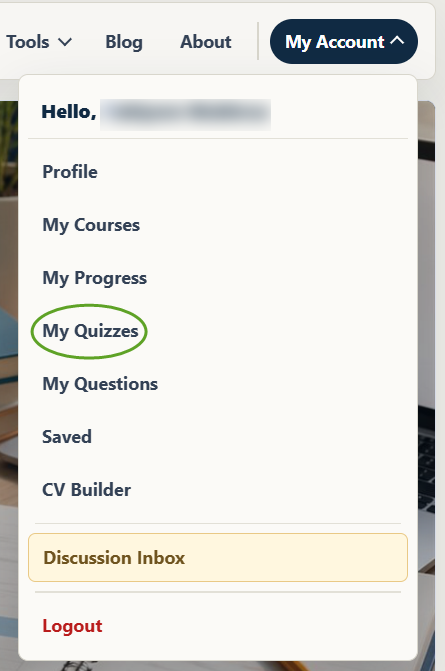
From there, select + New Quiz to start building.

How to create a quiz manually
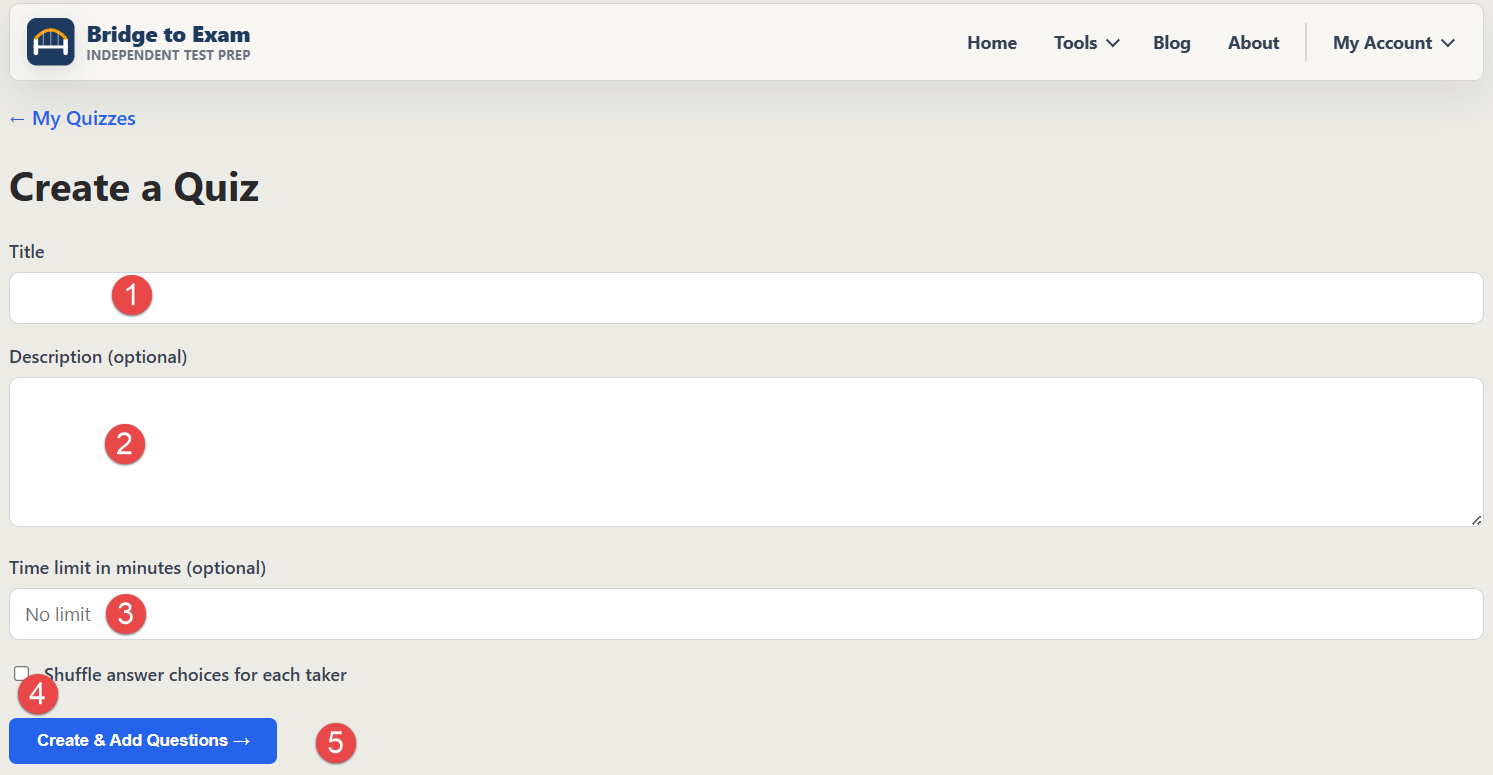
- Click + New Quiz from the My Quizzes page.
- Fill in a Title, an optional Description, and an optional time limit in minutes (leave it blank for no limit). Check Shuffle answer choices for each taker if you don't want the correct answer sitting in the same slot for everyone, then click Create & Add Questions.
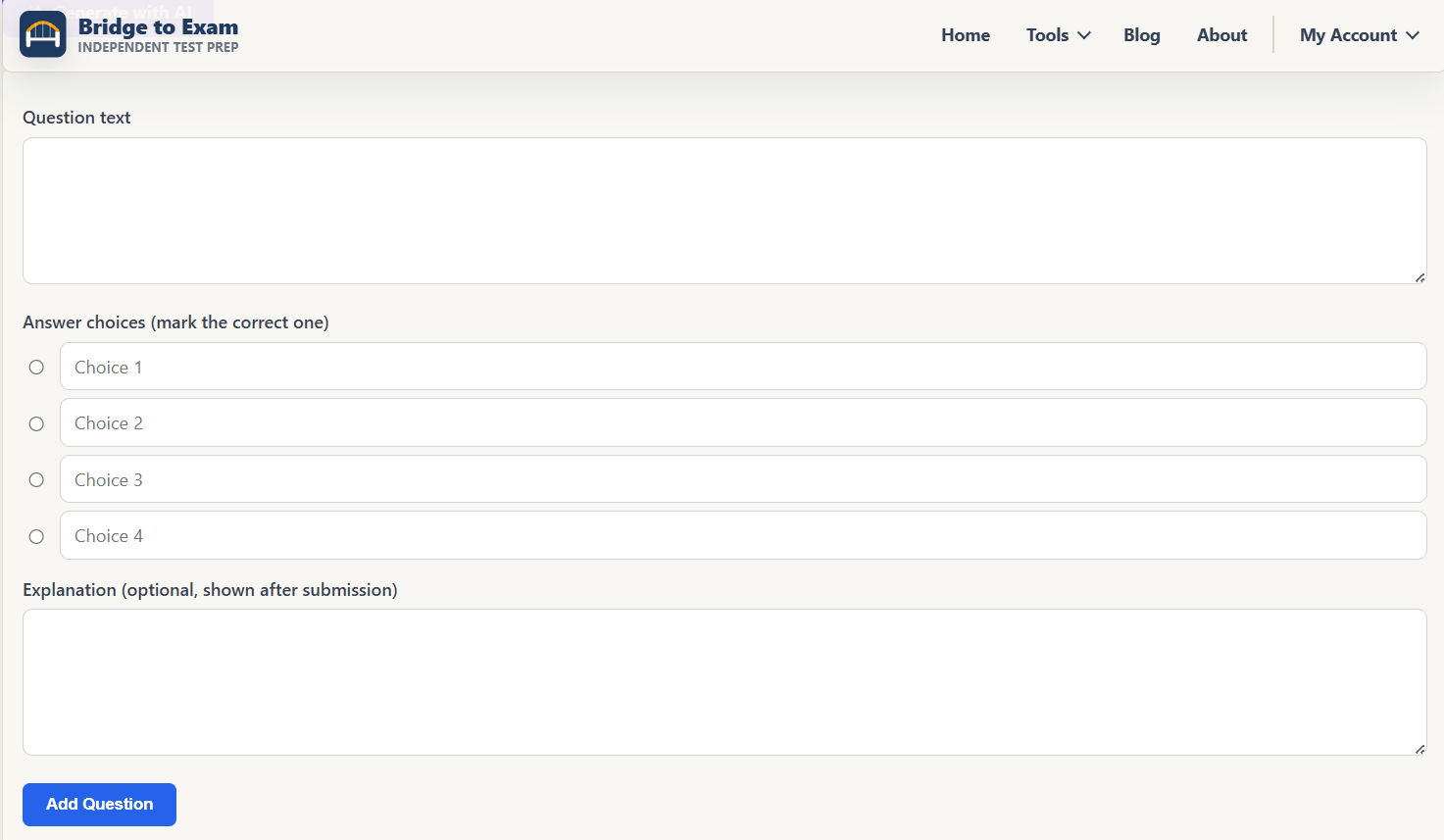
- For each question, enter the Question text, fill in Choice 1–4 (at least two choices are required), mark the correct one with the radio button, and optionally add an Explanation that appears after the taker submits. Click Add Question and repeat for as many questions as you need.
- When you're ready, toggle the quiz to published so the share link becomes active, then copy the link and send it to your students, classmates, or study group.
How to create a quiz with AI
If you'd rather not write every question by hand, use Generate with AI from inside a quiz you've already created:
- Open the quiz and click Generate with AI.
- In Describe this quiz, write what it should cover — for example, "Grade 8 photosynthesis basics: light reactions, chlorophyll, and the overall equation" or "GED®-level linear equations with one variable." Set How many questions? (1–20 per generation), then click Generate Questions →.
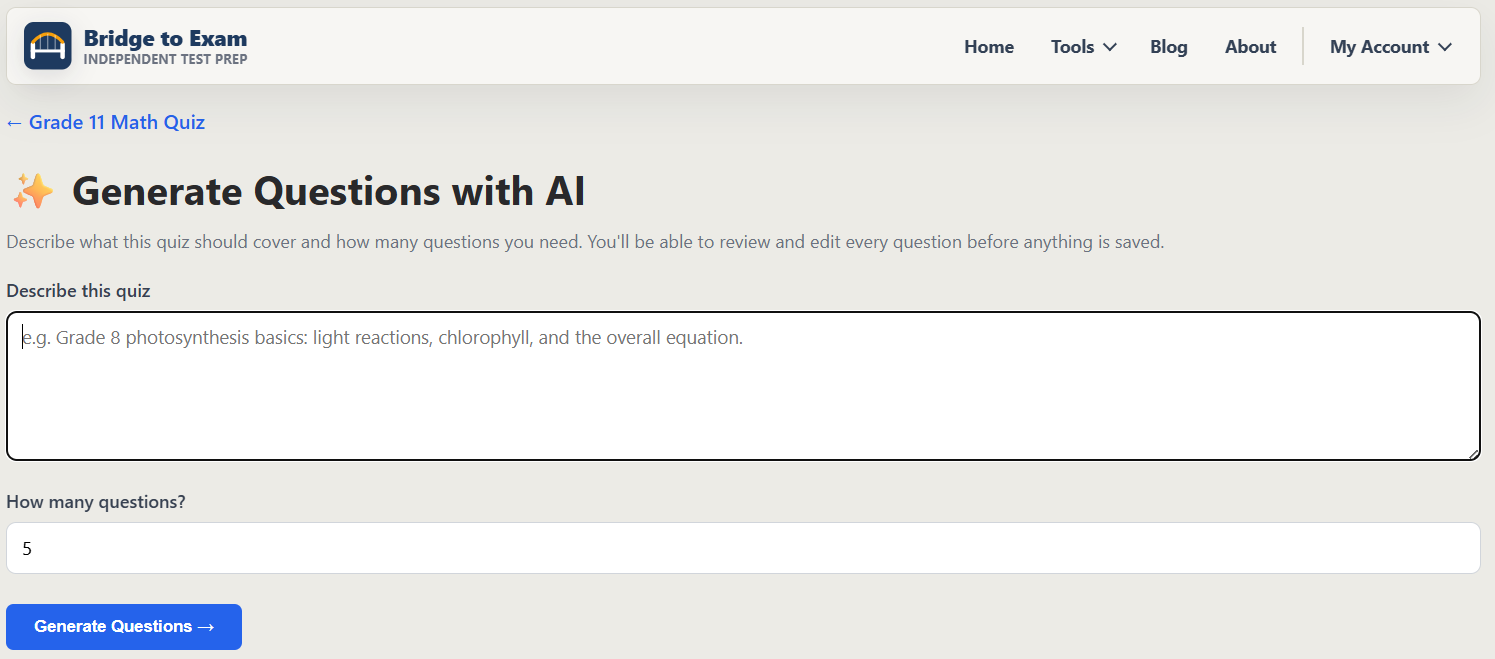
- The AI drafts a full set of multiple-choice questions with answer choices and explanations. Review every question before it's saved. Nothing is added to your quiz automatically — you choose which drafted questions to keep, and you can edit the text, choices, correct answer, or explanation for each one before saving.
- Save the ones you want, then keep adding more questions manually or generate another batch to round out the quiz.
This gives you the speed of AI drafting with a manual review step, so a rushed topic description never turns into a quiz you haven't actually checked.
Tracking results
Open any quiz from My Quizzes to see every submitted attempt: who took it, their score, and how many they got right out of the total. Click Export to download the full attempt list as a CSV file if you want to keep records outside the site or import scores into a spreadsheet.
Who this is for
- Teachers and tutors who want a fast way to check understanding after a lesson, without setting up a full course.
- Students and study groups quizzing each other on a specific topic before a test — write ten questions on tonight's reading and share the link with your group chat.
- Parents homeschooling or supplementing a child's schoolwork who want a quick comprehension check without building a lesson plan.
- Anyone prepping for the GED®, SAT®, or another exam who wants to turn a topic they're studying into a quick self-check or share it with a study partner for accountability.
- Content creators and community managers who want a lightweight, shareable knowledge check for their audience.
Because every quiz needs a signed-in owner and every attempt is tied to a logged-in user, results stay attached to real accounts — no anonymous spam submissions to sort through.
Try it now
Log in, open My Account → My Quizzes, and click + New Quiz. Whether you write every question yourself or let AI draft a starting set for you to review, you'll have a shareable quiz link in a couple of minutes.